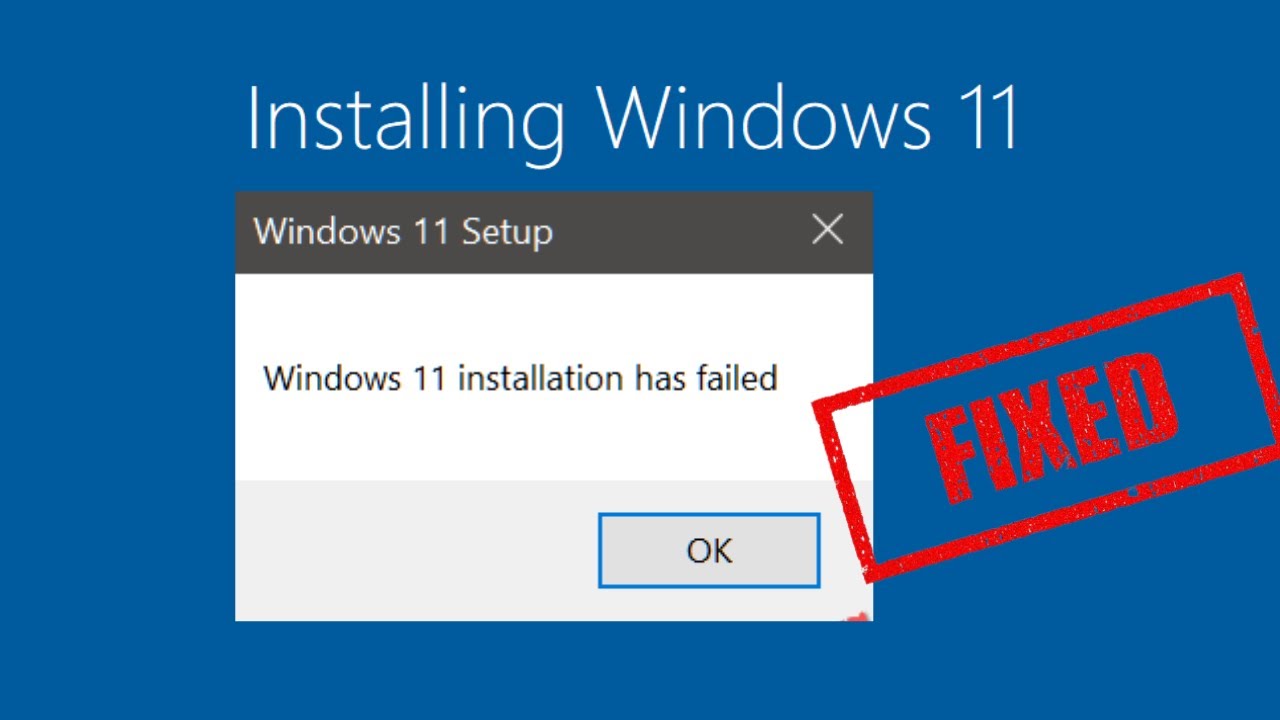
I still remember sitting at my desk late one night, watching my system try to upgrade to Windows 11 for the fourth time. Coffee on the left, hope on the right, and then, suddenly, bam: “Windows 11 installation has failed.” No error code. No explanation. Just Windows walking away like it forgot we had plans.
Many users have found themselves in the frustrating situation where the Windows 11 installation has failed, often without any clear reason.
If you’re facing the same silent treatment, trust me, you’re not the only one. Across the US, UK, and Canada, Windows users keep running into this mysterious installation failure that doesn’t even bother telling you what’s wrong.
So let’s break the silence and figure out what’s really happening and more important, how you can fix it without losing your mind.
Why Windows 11 Fails to Install Without Showing an Error Code?
Understanding Why Windows 11 Installation Has Failed
How does an operating system fail during installation but skip the part that explains why?
This is a common issue and many have faced the message: Windows 11 installation has failed, leaving them puzzled.
Here’s the truth: Windows 11 is picky. Like “this salad has too much dressing”, picky.
It requires proper BIOS settings, compatible hardware, correct boot modes, compatible partitions, and updated drivers. And when something’s even slightly off, it sometimes just stops. No error. No details.
But the good news? Most causes are completely repairable.
1. TPM or Secure Boot Isn’t Enabled (Most Common)
You know those two features, TPM 2.0 and Secure Boot. That many of us were ignored for years? Well, Windows 11 treats them like VIP passes. If they’re missing or disabled, the installation can fail with zero explanation.
What to do?
Addressing the Windows 11 installation has failed message can be achieved with a few troubleshooting steps.
- Restart your PC
- Enter the BIOS/UEFI settings
- Look for TPM, PTT, fTPM, or Security Chip
- Make sure TPM 2.0 is enabled
- Enable Secure Boot under Boot settings
A large number of users fixed their “no error code” issue simply by toggling these two settings.
2. Corrupted or Improper Installation Media
If your ISO didn’t download correctly or the USB was created with the wrong settings, Windows 11 often bails quietly.
Best method:
- Download a fresh Windows 11 ISO
- Use Rufus
- IMPORTANT: Leave all optional checkboxes unchecked
- Recreate the bootable USB
This step alone fixes the issue for a surprising number of people.
3. Insufficient Storage or Damaged System Partitions
Even if you have enough free space, your hidden recovery or EFI partitions might be full, fragmented, or misconfigured.
Try this:
If you encounter the Windows 11 installation has failed, it’s essential to check your storage settings.
- Free at least 30–40 GB
- Delete old update files
- Run Disk Cleanup
- Check if your EFI partition exists and isn’t duplicated (common issue after past repairs)
Windows 11 needs room to breathe, and cluttered system partitions love causing silent errors.
Don’t panic if you see Windows 11 installation has failed; simply follow the steps outlined here to resolve the issue.
4. Conflicting or Outdated Drivers
Sometimes your system drivers and the installer get into a silent argument, and Windows 11 walks out.
Fix this:
- Update GPU drivers
- Update chipset/storage drivers
- Disconnect printers, external drives, and extra USB hubs
- Temporarily disable or uninstall third-party antivirus software
I’ve personally seen outdated Intel RST drivers block installations with no messages.
Updating your drivers can help if you’ve received the Windows 11 installation has failed message during your upgrade attempt.
5. Outdated BIOS/UEFI Firmware
If your system was built in the Windows 10 era, chances are your BIOS wasn’t designed with Windows 11’s requirements in mind.
A quick firmware update can:
- Fix TPM handshake issues
- Improve Secure Boot compatibility
- Fix memory/addressing problems
- Prevent silent installation failures
Manufacturers like Dell, HP, Lenovo, and ASUS publish monthly updates worth checking.
Regularly updating can prevent the dreaded Windows 11 installation has failed experience.
6. You’re Using MBR Instead of GPT
Windows 11 is strict about UEFI boot and GPT partitions. If your disk uses MBR, the installer may fail without warning.
You can convert safely:
mbr2gpt /convert /allowfullos
This keeps your data intact and instantly switches the disk to GPT.
The Fix Order That Works Most Consistently
Follow the order that solves this particular problem fastest:
- Enable TPM + Secure Boot
- Update BIOS
- Recreate Windows 11 USB with Rufus
- Unplug everything except keyboard and mouse
- Update drivers
- Convert MBR to GPT
- Try again
It’s not complicated but it absolutely works.
When All Else Fails: The Clean Install Option
Nobody wants to wipe their PC clean. But if you’ve tried everything and Windows 11 is still refusing to cooperate, a clean installation almost always succeeds.
Sometimes, a clean install is the best way to avoid seeing the Windows 11 installation has failed message again.
Just be sure to:
- Backup files
- Sync browser data
- Screenshot your app list
- Save game data if needed
It’s drastic, but in stubborn cases, it’s the final, reliable fix.
A Quick Reality Check
If Windows 11 won’t install, it doesn’t mean your PC is old or broken. In most cases, it’s just one tiny configuration out of place. Once you find it, the installation usually runs smoothly, as if nothing ever happened.
Remember, if your Windows 11 installation has failed, it often can be traced back to a simple fix.
Супер заметка, прям на днях копался по данному теме:)
Seriously enjoying pokerkingvn8! The tables are always active and I’ve already seen some serious action. Def worth a look if you are looking for poker! Check out pokerkingvn8!
bRLm
FB88UnitedStates, betting across the pond, eh? Wonder if they got the same footy odds…time to investigate! fb88unitedstates